Have you ever wanted an app that exists only on another Linux distro? Or needed a newer (or older) version of a tool, but upgrading it would break something else on your machine? Distrobox is the tool that fixed this for me. This guide explains what it is, why it is useful, and how to use it step by step, in simple language.
Distrobox lets you run another Linux distribution inside your terminal. You can be on Fedora and open an Ubuntu box, or be on Ubuntu and open an Arch box. Inside it you use that distro's own package manager (apt, dnf, pacman) and install things there, without touching your main system.
It is a thin wrapper around a container manager (podman, docker or lilipod). But unlike a normal container, a Distrobox container is integrated with your host:
it shares your home directory, so your files are right there,
it shares your display, so GUI apps open as normal windows,
it shares audio, USB devices, the network, and the SSH agent.
So it feels like using a second distro on the same machine, with none of the weight of a virtual machine.
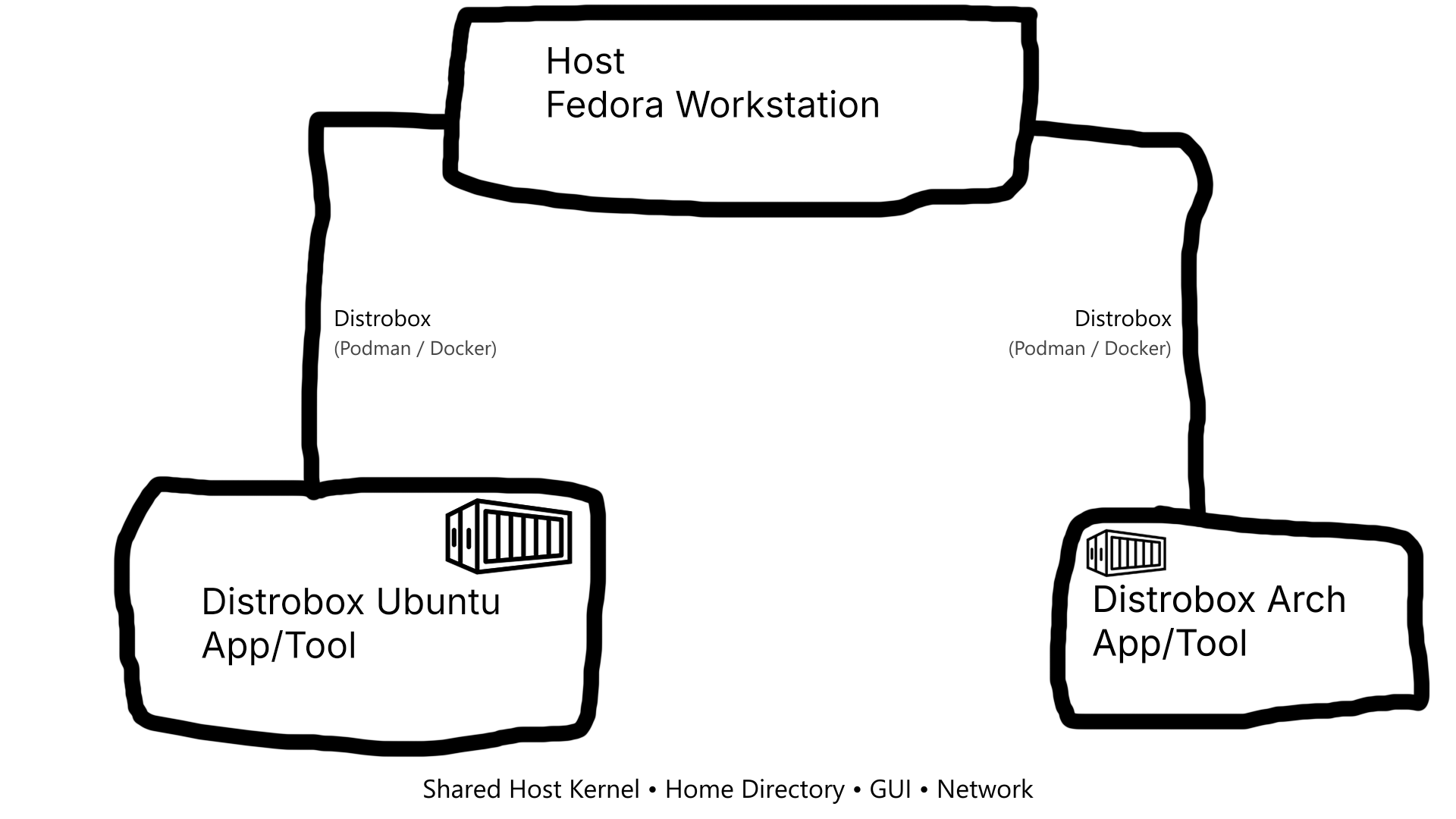
How Distrobox works: a Fedora Workstation host runs an Ubuntu box and an Arch box, each with its own apps and tools, managed by Distrobox through Podman or Docker, sharing the host kernel, home directory, GUI and network
Figure: How Distrobox works. A single Fedora workstation can run applications from different Linux distributions, such as Ubuntu and Arch Linux, using lightweight containers. Unlike traditional virtual machines, these containers share the host's Linux kernel while keeping separate user-space environments and package managers.
Diagram made by me with PhotoCraft, for free (˶>⩊<˶)
The tools that come with it
Distrobox is a small set of commands. You can run each one as distrobox COMMAND, or as its own tool (distrobox-create, distrobox-enter, ...):
distrobox-assemble: create and destroy containers from a config file
distrobox-create: create a container
distrobox-enter: enter a container
distrobox-ephemeral: create a temporary container that is destroyed when you exit the shell
distrobox-list: list your containers
distrobox-rm: delete a container
distrobox-stop: stop a running container
distrobox-upgrade: upgrade one or more containers at once
distrobox-generate-entry: add a container to your applications list
distrobox-init: the container entry point (you never run it by hand)
distrobox-export: run inside the container, exports apps and services to the host
distrobox-host-exec: run commands from the host while you are inside the container
The idea comes from Toolbox, re-done in a simpler way with POSIX sh so that it works on more systems.
The kernel catch: inside the box you get a Fedora, Ubuntu or Arch user space, but you are still running your host's Linux kernel. A box is not a virtual machine, so you can't test a different kernel with it.
What problems does it solve?
Problem
How Distrobox helps
An app or package exists only for another distro (for example the AUR on Arch, or a .deb on Ubuntu)
Make a box of that distro, install it there, and run it from your desktop
Two tools need conflicting versions of the same library
Put each one in its own box, so they never fight
Your distro is immutable (Fedora Silverblue, SteamOS, Vanilla OS) and you can't just apt install things
Install everything inside a box, and keep the host untouched
You want to test something risky or messy
Do it in a box. If it breaks, delete the box and make a new one
Your host gets cluttered with dev tools
Keep your toolchain in a box and the host stays clean
Working on several clients or cloud accounts, with credentials mixed together
One box per client, each with its own home folder
You want to rebuild your setup on a new machine
Write the setup in one file and recreate it with a single command
Virtual machines are too heavy and slow
Containers start in seconds and use almost no extra memory
In short: Distrobox gives you a safe, disposable, per-project Linux without leaving your own desktop.
Install
How to read the code blocks: a block marked ON THE HOST runs in your normal terminal. A block marked IN THE BOX runs inside the container, after distrobox enter.
You need two things: a container manager and Distrobox. I recommend Podman, because it runs without root by default.
Ubuntu / Debian (apt)
ON THE HOST · bash
sudoapt update
sudoaptinstall-ypodman distrobox
Fedora (dnf)
ON THE HOST · bash
sudo dnf install-ypodman distrobox
Arch / Manjaro (pacman)
ON THE HOST · bash
sudo pacman -S--neededpodman distrobox
Distro repositories can ship an older Distrobox version. If distrobox is missing or too old on your release, use the install script from the project (stable version):
Add -s -- --prefix ~/.local after sh to install into your home folder instead of system-wide, and make sure ~/.local/bin is in your PATH.
Check it works:
ON THE HOST · bash
distrobox --version
Create and enter your first container
ON THE HOST · bash
distrobox create --name ubuntu-box --image ubuntu:24.04
distrobox enter ubuntu-box
The first time, it downloads the image and sets everything up, which takes a minute. After that, your prompt changes. You are now inside Ubuntu, in the same home folder you always use:
IN THE BOX · bash
cat /etc/os-release # shows Ubuntusudoapt update # works inside the boxexit# back to your host
Other images work the same way: fedora:latest, archlinux:latest, debian:latest, registry.opensuse.org/opensuse/toolbox:latest.
The commands you will use every day
Command
What it does
distrobox create -n NAME -i IMAGE
Create a container
distrobox enter NAME
Open a shell inside it
distrobox enter NAME -- COMMAND
Run one command inside it
distrobox list (or ls)
Show all containers
distrobox stop NAME
Stop a running container
distrobox rm NAME
Delete a container
distrobox upgrade --all
Update the packages in all containers
distrobox ephemeral
Temporary container, removed when you exit
distrobox assemble create
Create containers from a manifest file
Example 1: Claude Desktop from Ubuntu, in your app menu
This is the shortest useful example: install an app in a box, then export it so it shows up in your normal launcher, like any other app.
I picked Claude Desktop because it is a perfect fit. The official Linux beta supports only Debian-based systems (Ubuntu 22.04+ or Debian 12+). On Fedora or Arch that means you can't install it directly, but with Distrobox you can run it from an Ubuntu box anyway.
Step 1: create and enter an Ubuntu box
ON THE HOST · bash
distrobox create --name ubuntu-apps --image ubuntu:24.04
distrobox enter ubuntu-apps
Step 2: inside the box, add Anthropic's apt repository and install the app
IN THE BOX · bash
# tools needed to download and check the signing keysudoapt update &&sudoaptinstall-ycurl gnupg
# download Anthropic's signing keysudocurl-fsSLo /usr/share/keyrings/claude-desktop-archive-keyring.asc https://downloads.claude.ai/claude-desktop/key.asc
# check the key: the fingerprint must be 31DDDE24DDFAB679F42D7BD2BAA929FF1A7ECACEgpg --show-keys /usr/share/keyrings/claude-desktop-archive-keyring.asc
# register the repositoryecho"deb [arch=amd64,arm64 signed-by=/usr/share/keyrings/claude-desktop-archive-keyring.asc] https://downloads.claude.ai/claude-desktop/apt/stable stable main"|sudotee /etc/apt/sources.list.d/claude-desktop.list
# install the appsudoapt update &&sudoaptinstall-y claude-desktop
Step 3: export it to your host menu (still inside the box)
IN THE BOX · bash
# find the exact name of the app's launcher filels /usr/share/applications |grep-i claude
# export it to the host menudistrobox-export --app claude-desktop
Now open your application launcher and search for Claude. It starts like a native app, but it lives in the Ubuntu box. Sign in with your Anthropic account as usual. Updates come through the box: run distrobox upgrade ubuntu-apps now and then.
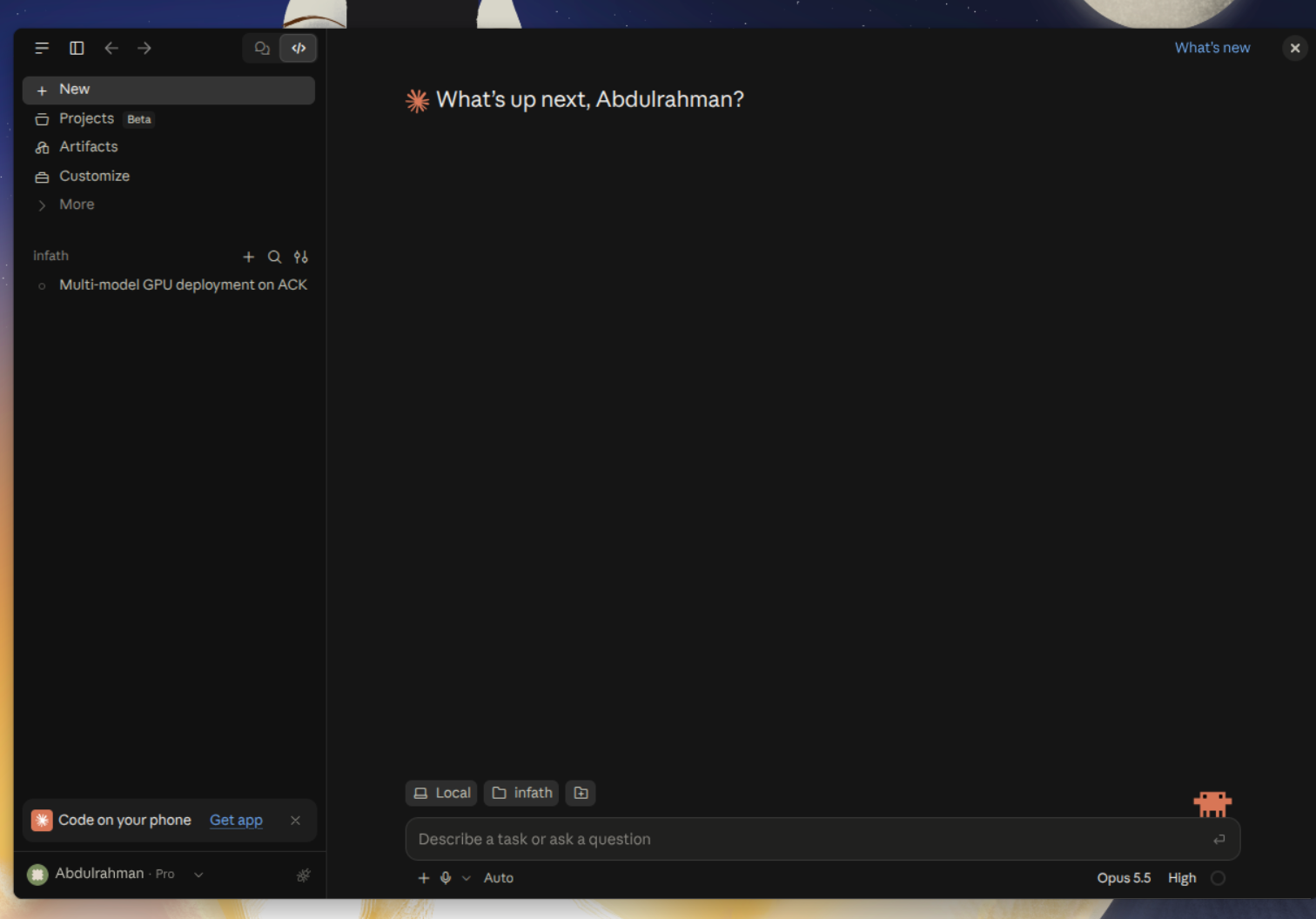
Claude Desktop running on my Fedora desktop from an Ubuntu box, even though its Linux beta officially supports only Debian-based distributions
Here it is on my own machine: Claude Desktop running on Fedora, even though its Linux beta officially supports only Debian-based distributions.
Use the same recipe for any other app. Only the install lines change:
ON THE HOST · bash
# 1. on your host: enter your boxdistrobox enter ubuntu-apps
Then, inside the box:
IN THE BOX · bash
# 2. install the app (replace with any package, for example gimp, vlc, libreoffice)sudoaptinstall-y<package-name># 3. export it so it appears in your host app menu (replace with the app's name)distrobox-export --app<app-name># 4. remove it from the menu laterdistrobox-export --app<app-name>--delete
Not every Claude Desktop feature has to work inside a container. Cowork, for example, needs hardware virtualization (KVM) and QEMU, which the docs list as requirements, and I haven't tested it in a box. Check the Linux docs if one of its tabs complains.
You can also export a command-line tool so it works from your host terminal:
GUI apps work out of the box on most desktops, because the container shares your X11 and Wayland sockets. The idea is the same everywhere, only the package manager changes. These boxes are also how you run Debian-only apps like Claude Desktop from Fedora or Arch: use the Ubuntu box from Example 1.
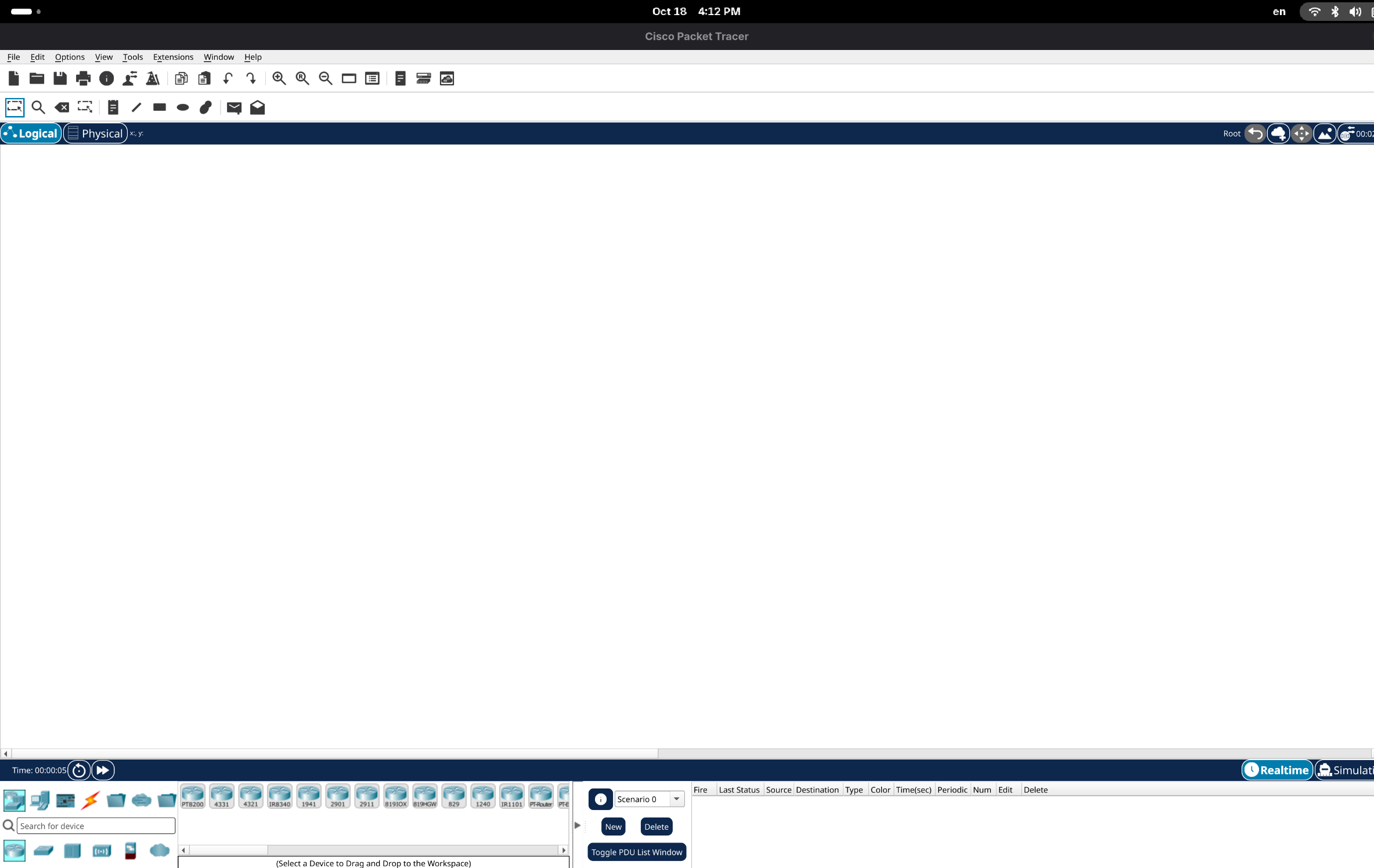
The same trick works for other apps that only ship a .deb package. For example, I run Cisco Packet Tracer, which is distributed as a Debian package, on Fedora from an Ubuntu box:
Cisco Packet Tracer, a Debian package, running on my Fedora desktop from an Ubuntu Distrobox container
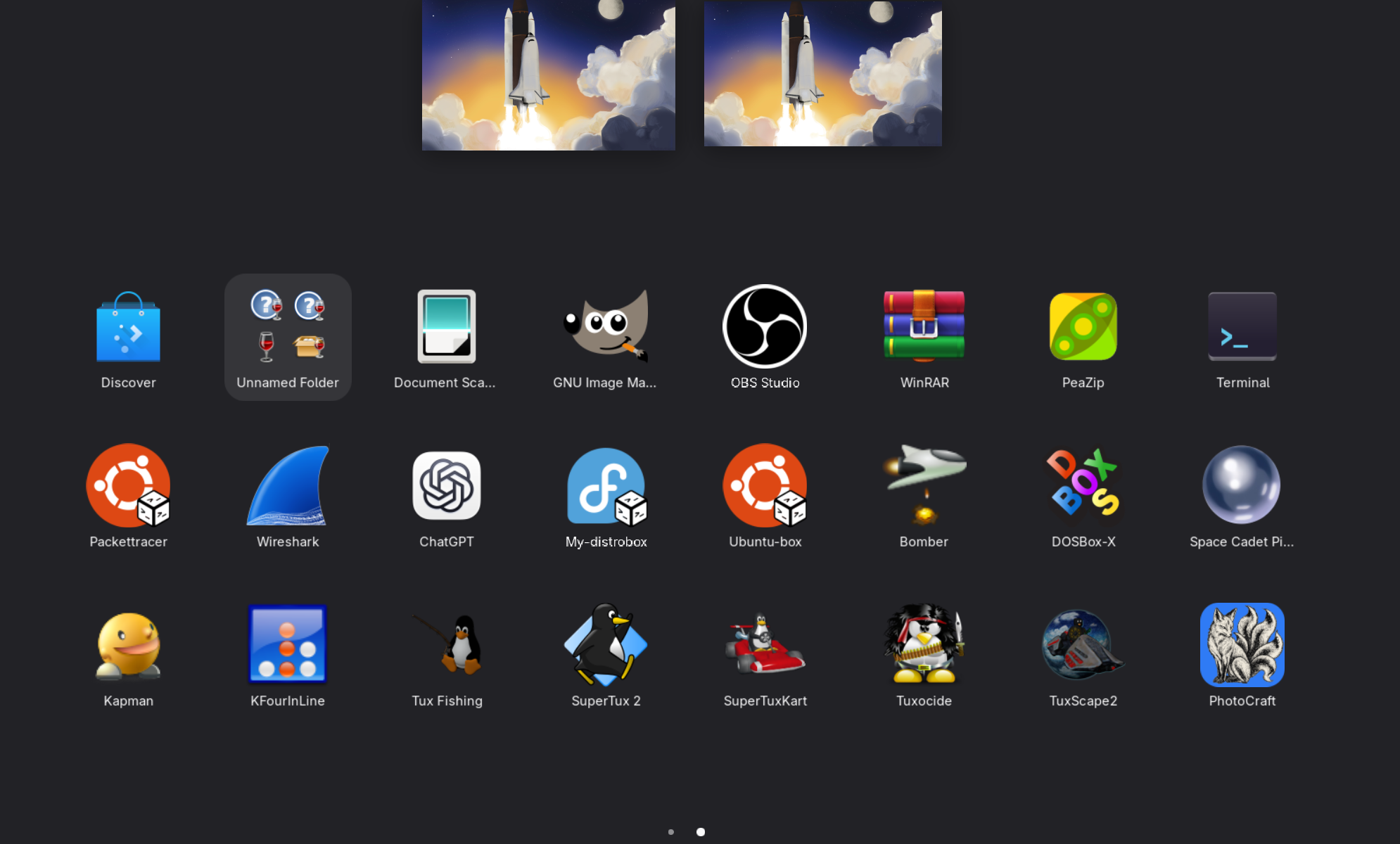
Exported apps sit in the app grid next to native ones. Apps that come from a box get a small box icon on their icon, like Packet Tracer and the Ubuntu-box and My-distrobox entries below:
My Fedora app grid with exported Distrobox apps marked by a small box icon: Packettracer, My-distrobox and Ubuntu-box, next to native apps like GIMP, OBS Studio and Wireshark
Fedora box (works from any host):
ON THE HOST · bash
distrobox create --name fedora-apps --image fedora:latest
distrobox enter fedora-apps
You can also run an app directly without exporting it:
ON THE HOST · bash
distrobox enter arch-apps -- gimp
If a GUI app won't open
If you see an error like "cannot open display", the container can't reach the host's X server. Install xhost on the host, then run:
ON THE HOST · bash
xhost +si:localuser:$USER
To make it permanent, add this line to ~/.distroboxrc:
ON THE HOST · bash
xhost +si:localuser:$USER>/dev/null
If the app still has no clipboard, install xsel inside the box on an Xorg desktop.
Using an NVIDIA GPU
Intel and AMD GPUs work without extra steps, because the container installs the latest Mesa/DRI drivers. For NVIDIA, you must create the box with the --nvidia flag. Without it, the app inside the container won't use your host's NVIDIA card:
The Distrobox compatibility page confirms this flag and also mentions an alternative: set up GPU access yourself with NVIDIA's nvidia-container-toolkit. The same page lists the supported host distros and the minimum container manager versions (Podman 2.1.0 rootless, Docker 19.03.15 without sudo).
Example 3: A toolbox for a cloud architect
This is where Distrobox really shines for my work. Cloud engineers juggle many CLIs (AWS, Alibaba Cloud, Kubernetes, Terraform), several accounts, and credentials that must not get mixed up. A dedicated box per client or account keeps all of it tidy.
Create a box with its own home folder, so its credentials and config files stay separate from your main home:
aws --versionkubectl version --clientossutil version
Run aws configure or ossutil config inside this box, and those credentials stay in ~/boxes/client-a, never in your real home. Make another box for the next client, and the two never touch.
Save the whole setup in one file
Instead of repeating commands, write the box as a manifest. Create distrobox.ini:
Distrobox is a wrapper over Podman or Docker that tightly integrates apps from other distros with your host. For example, you can use AUR packages on Debian, or the Fedora build of Firefox on Pop!_OS.
Exposing GUI apps from containers used to be complicated, and Distrobox makes it easy. That makes it great for developers who package software for several distros, and for anyone who wants to test packages without touching the host.
distrobox create with no options builds a Fedora container named my-distrobox. To pick a distro and a name, use --name and --image, for example distrobox create -n UbuntuBox --image ubuntu:22.04.
distrobox enter NAME drops you into the container. From then on, dnf or apt commands run inside it, not on your host.
Run distrobox-export --app NAMEinside the container, and within seconds the app shows up in your host's launcher.
distrobox list shows all your containers, and distrobox rm NAME deletes one.
On an NVIDIA host, remember --nvidia when creating the container.
It is still your host kernel underneath.
I only kept the points that I could confirm in the official docs. Check any command against the project's documentation before you rely on it.
For Arabic readers: there is also an Arabic video that explains how to use Distrobox, شرح استخدام distrobox by الوقّاد (Alwaqad).
Good habits
Keep boxes small and specific. One box for GUI apps, one per project or client.
Update them. Run distrobox upgrade --all now and then.
Throw away what you don't need.distrobox rm NAME is cheap, and a fresh box takes a minute.
Back up the manifest, not the box. The distrobox.ini file is what you actually need to rebuild.
Security: it is not a sandbox
Distrobox is built for convenience, not isolation. Containers can read and write your home folder, and if you use Docker (or Podman with --root), the container runs as root, which can affect the host. For a safer setup use rootless Podman, and don't run software you don't trust inside a box that shares your home. A separate --home folder, as in Example 3, helps limit what a box can see.
Troubleshooting
distrobox: command not found: if you installed to ~/.local, add export PATH="$HOME/.local/bin:$PATH" to your shell profile.
Image won't download: check your internet connection, or use the full registry name, for example docker.io/library/archlinux:latest.
A GUI app doesn't open: see the xhost step above.
A box misbehaves:distrobox stop NAME, then distrobox rm NAME, then create it again. This is the "cattle, not pets" idea in action.
Docker complaining about rootless mode: rootless Docker doesn't work as expected with Distrobox. Use Podman instead.
Conclusion
Distrobox gives you the freedom of every Linux distro on one machine. You can run apps your distro doesn't ship, keep your host clean, separate your cloud accounts, and rebuild everything from a single file. Start with one Ubuntu box and one GUI app. Once you see how quickly you can create and delete a box, you will use it for everything.